Enhancing LLMClip with Mermaid Diagram Support
This post details the recent enhancement to LLMClip, an AutoHotkey v2 clipboard manager, by integrating support for Mermaid diagrams. This new feature allows LLMs to generate diagrams directly within the app.
How Mermaid Support Was Added
Integrating Mermaid into LLMClip involved a few key steps within the WebViewManager.ahk script, which handles the rendering of the web-based chat interface.
- Including the Mermaid Library
The mermaid.min.js library was added to the project and then included in the HTML content generated by GetHtmlContent(). This makes the Mermaid JavaScript API available for rendering diagrams.
<script src="marked.min.js"></script>
<script src="mermaid.min.js"></script>
- Modifying the Markdown Renderer
The marked.Renderer() was extended to recognize code blocks specifically tagged as mermaid. When such a block is encountered, instead of wrapping it in a standard pre and code tag, it’s now wrapped in a div with the class mermaid. This class is crucial for the Mermaid library to identify and process the diagram definition.
renderer.code = function(code, infostring, escaped) {
    if (code.lang === 'mermaid') {
        return '<div class="mermaid">' + code.text + '</div>';
    }
    // ... existing code block rendering ...
};
- Initializing and Running Mermaid
After the Markdown content is parsed and rendered into the content div, the mermaid.initialize() function is called with startOnLoad: false to prevent automatic rendering on page load. Subsequently, mermaid.run() is invoked, targeting all elements with the class mermaid. This tells the Mermaid library to find these divs and render the diagram definitions within them.
mermaid.initialize({ startOnLoad: false });

function renderMarkdown(content) {
    // ... existing rendering logic ...
    document.getElementById("content").innerHTML = marked.parse(content, { renderer: renderer });
    mermaid.run({
        nodes: document.querySelectorAll('.mermaid')
    });
}
- Handling HTML Content Navigation and the
NavigateToStringLimit
Previously, the WebViewManager used NavigateToString() to load the HTML content. While convenient for smaller strings, this method has a limitation: it fails with an invalid parameter error (0x80070057) when the string becomes too large. This became a critical issue with the inclusion of mermaid.min.js, which is approximately 2.7 MB. Embedding such a large script directly into the HTML string exceeded the internal IPC memory limit of NavigateToString().
To overcome this, a new NavigateToHtml function was introduced. This function writes the generated HTML content to a temporary ui.html file in the script’s directory and then navigates the WebView2 control to this local file using a file:/// URI. This approach offers two key benefits:
- Bypassing
NavigateToStringLimit: By savingui.htmlto the disk, we can use<script src="mermaid.min.js"></script>within the HTML. This allows the WebView to load the large Mermaid script file directly from the file system, keeping the initial HTML string small and avoiding theNavigateToStringmemory limit. - Simplicity and Robustness: While an alternative like setting up a Virtual Host Mapping (Custom Scheme) could serve resources from memory, it would require significantly more complex low-level code in AutoHotkey. The
ui.htmlapproach provides a simpler and more robust solution for handling large external script files.
This ensures that all relative script paths are resolved correctly and the large mermaid.min.js file is loaded efficiently.
NavigateToHtml(htmlContent) {
    tempFile := A_ScriptDir . "\ui.html"
    try FileDelete(tempFile)
    FileAppend(htmlContent, tempFile, "UTF-8")
    this.wv.Navigate("file:///" . StrReplace(tempFile, "\", "/"))
}
How to Use Mermaid in LLMClip
To leverage this new feature, simply instruct your LLM to generate a Mermaid diagram within a code block, specifying mermaid as the language. For example, you could prompt your LLM with something like:
“Generate a flowchart showing the process of making a cup of coffee using Mermaid syntax.”
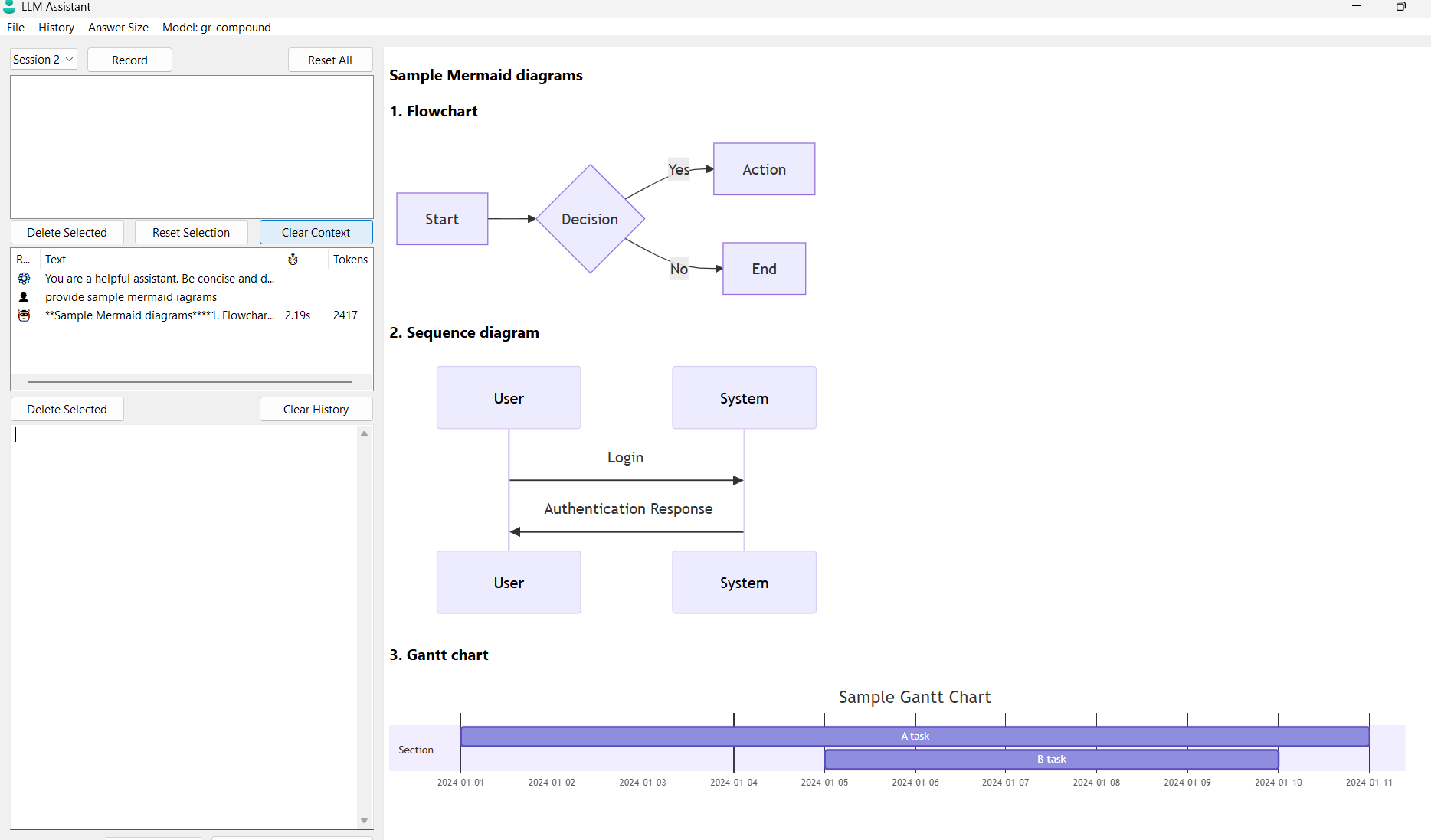
The LLM would then respond with a Mermaid code block, and LLMClip would render it as an interactive diagram in the chat interface:
graph TD
    A[Start] --> B{Boil Water?};
    B -- Yes --> C[Add Coffee Grounds];
    C --> D[Pour Water];
    D --> E[Add Sugar/Milk (Optional)];
    E --> F[Enjoy!];
    B -- No --> A;